The key features and how to use the app — on six pages, explained step by step with screenshots.
Contents Getting started · Training · Profiles, screening & programs · Analysis
kognitives-training.ch Dr. phil. Romain Ghibellini · Quick guide
Cognitive training
Overview & getting started
Getting started
Log in and get to know the home screen.
Cognitive training is a web-based exercise environment with 29 games across five cognitive areas.
You log in with a username and password — or via Google or Apple — and then go straight
to the home screen.
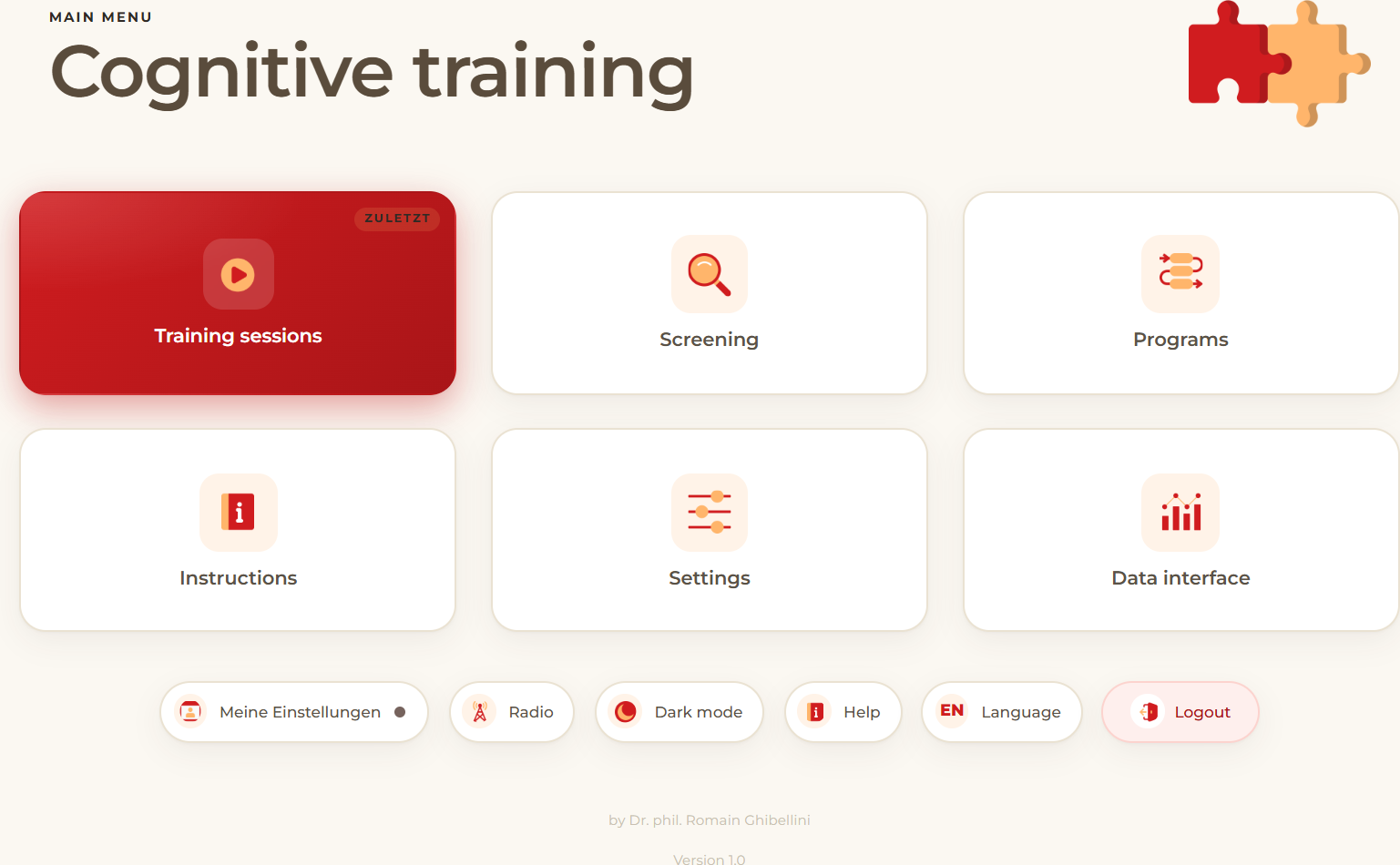
The home screen. The numbers follow the tiles from top left to bottom right.
1Training — select and start individual games.
2Screening — determine the starting level for each game.
3Programs — combine several games into a sequence.
4Instructions — explanation, demo and controls for each game.
5Settings — adjust parameters and difficulty.
6Data interface — view sessions and progress.
Good to know
Below the tiles is a bar of seven buttons: profiles, radio, dark mode, help, feedback, language
and logout. As a private user you can start straight away; therapists first select the person via
the «Profiles» button (page 4).
Overview & getting started02
Cognitive training
Running a training
Training
Choose and start a training.
Trainings are the heart of the application. You choose an individual game from one of the five
areas, first view a short instruction with a demo, and then start straight away.
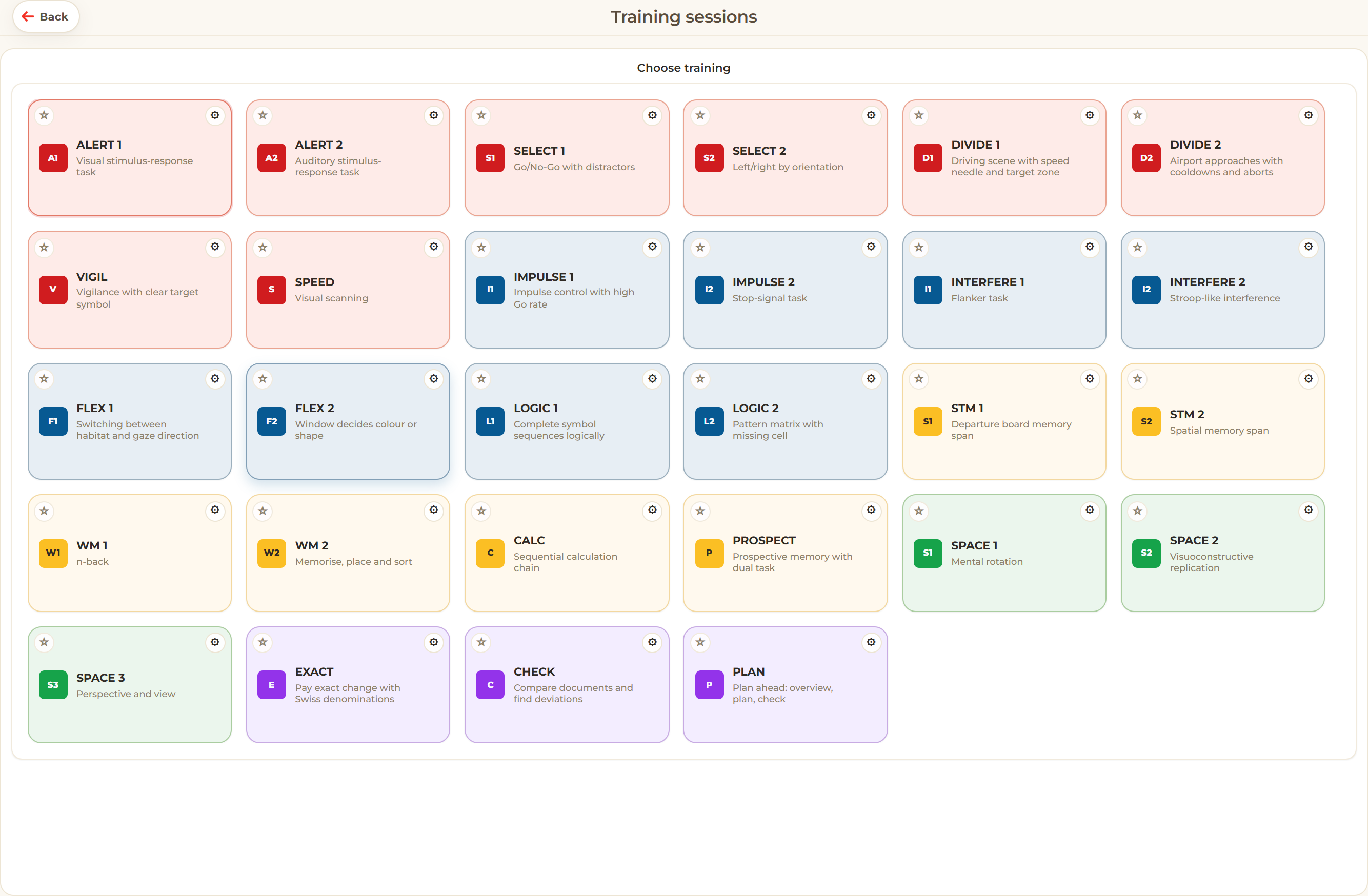
Training selection. All games, grouped by area and colour-coded.
How to start a training
Choose a profile — therapists only: activate the profile of the person training. As a private user, start straight away at step 2.
Open «Training» — tap the Training tile on the home screen.
Select a game — a game from one of the five colour-coded areas; favourites appear at the top.
View the instruction — read the short explanation with demo and controls.
Play — during the game the buttons Skip and Exit are available at the top right.
Analysis — at the end you see the points, the new level and, where applicable, a medal.
Each game has 30 difficulty levels. The right starting level comes from the screening (page 4) or
can be set in the settings.
Running a training03
Cognitive training
Profiles, screening & programs
Organise
Profiles, screening and programs.
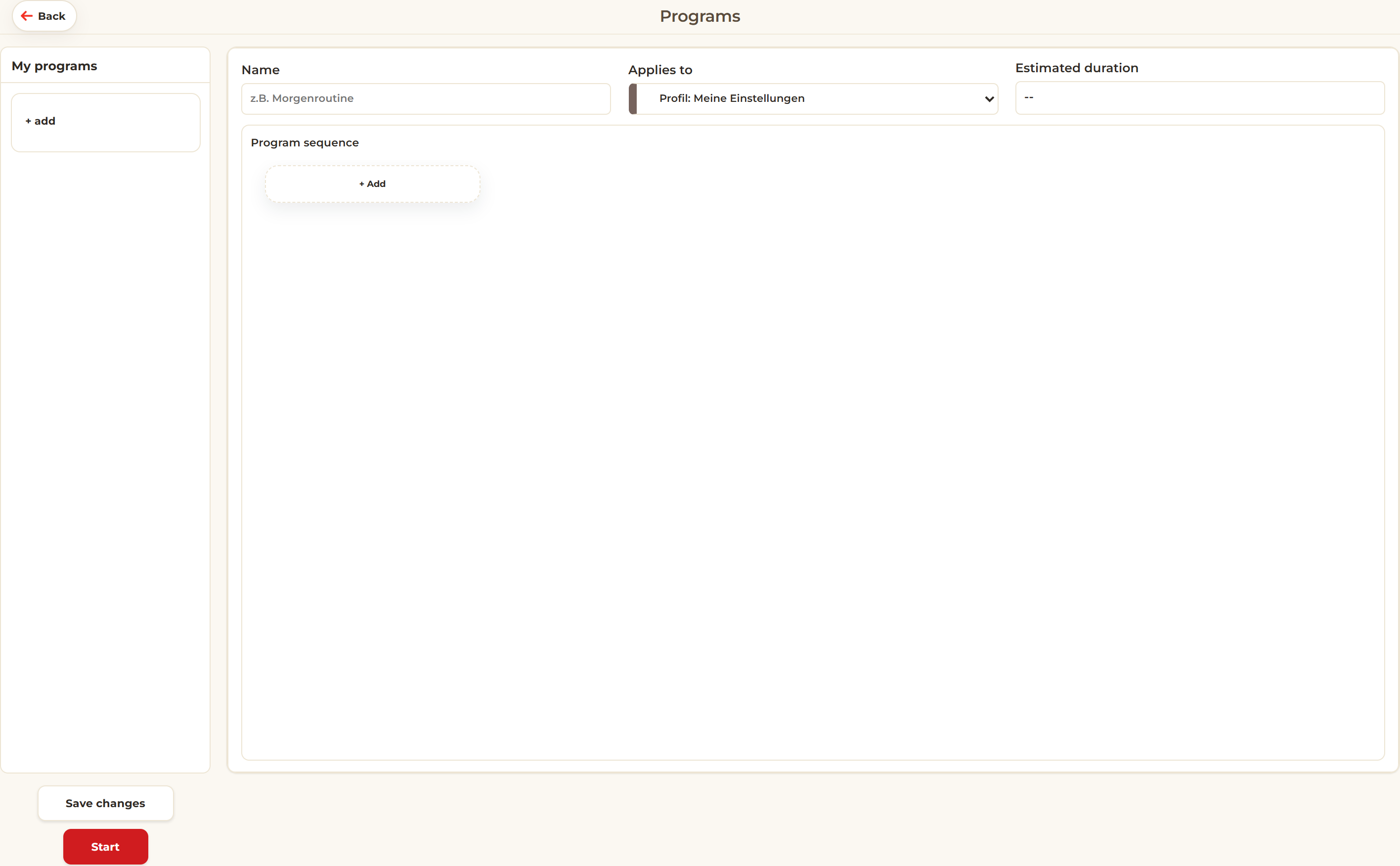
Three tools make training traceable: profiles save progress, the screening finds the right
starting level, and programs combine games into a routine.
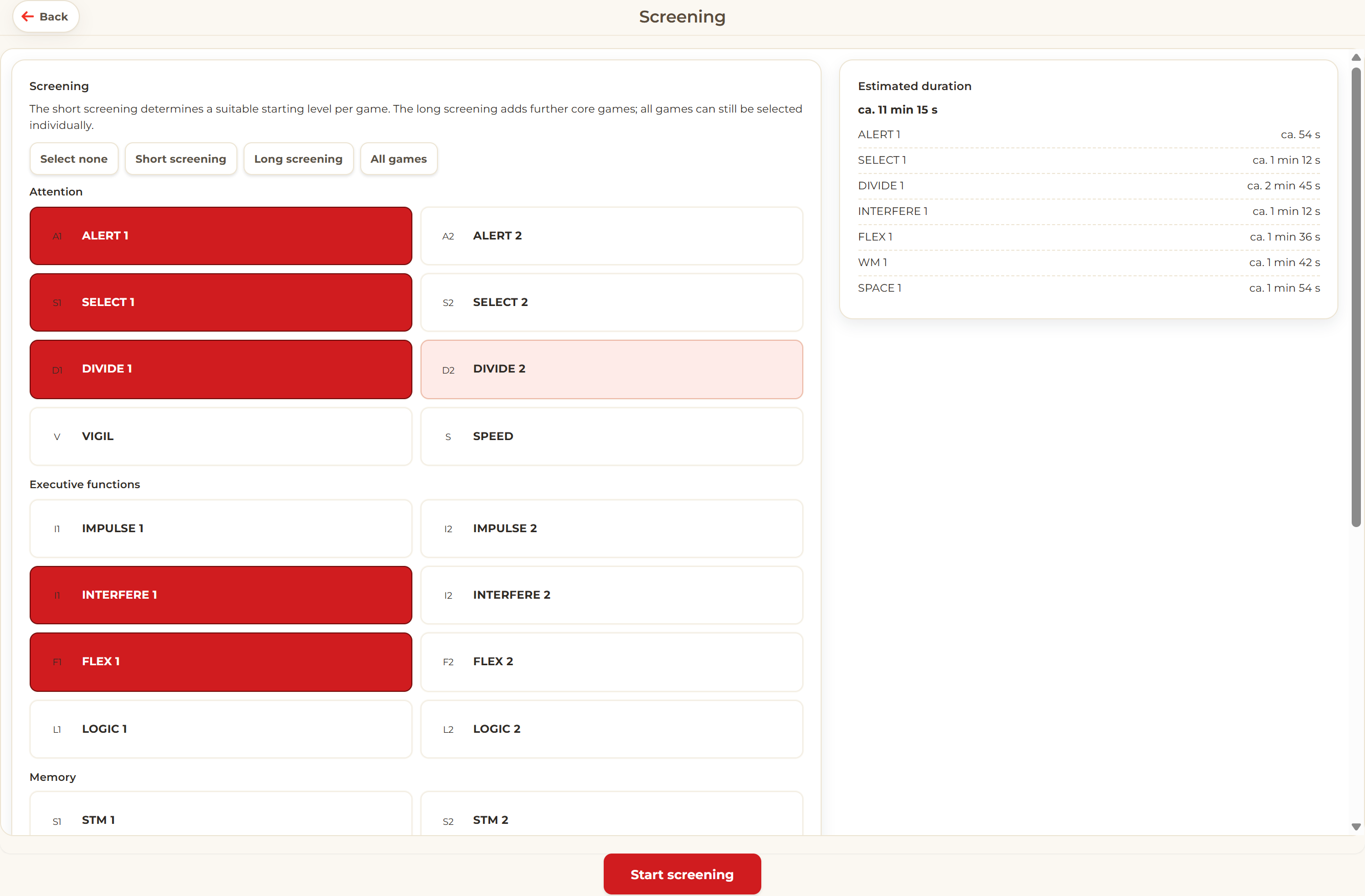
Screening. Determines a suitable starting level for each game.
Programs. Put together a fixed sequence of several games.
Profiles
As a private user you train directly — your results are saved automatically. Therapists create
a separate profile for each person they support and select it before training; it saves levels,
settings, results and medals.
Screening
Choose a short screening (core games), a long screening or all games — the selection can also
be adjusted freely. The recommendations are only applied to the profile with Save and
finish.
Programs
A program is a fixed sequence of several games — ideal for recurring routines. Programs can be
named, assigned to a profile and started with one click.
Profiles, screening & programs04
Cognitive training
Analysis & settings
Analyse
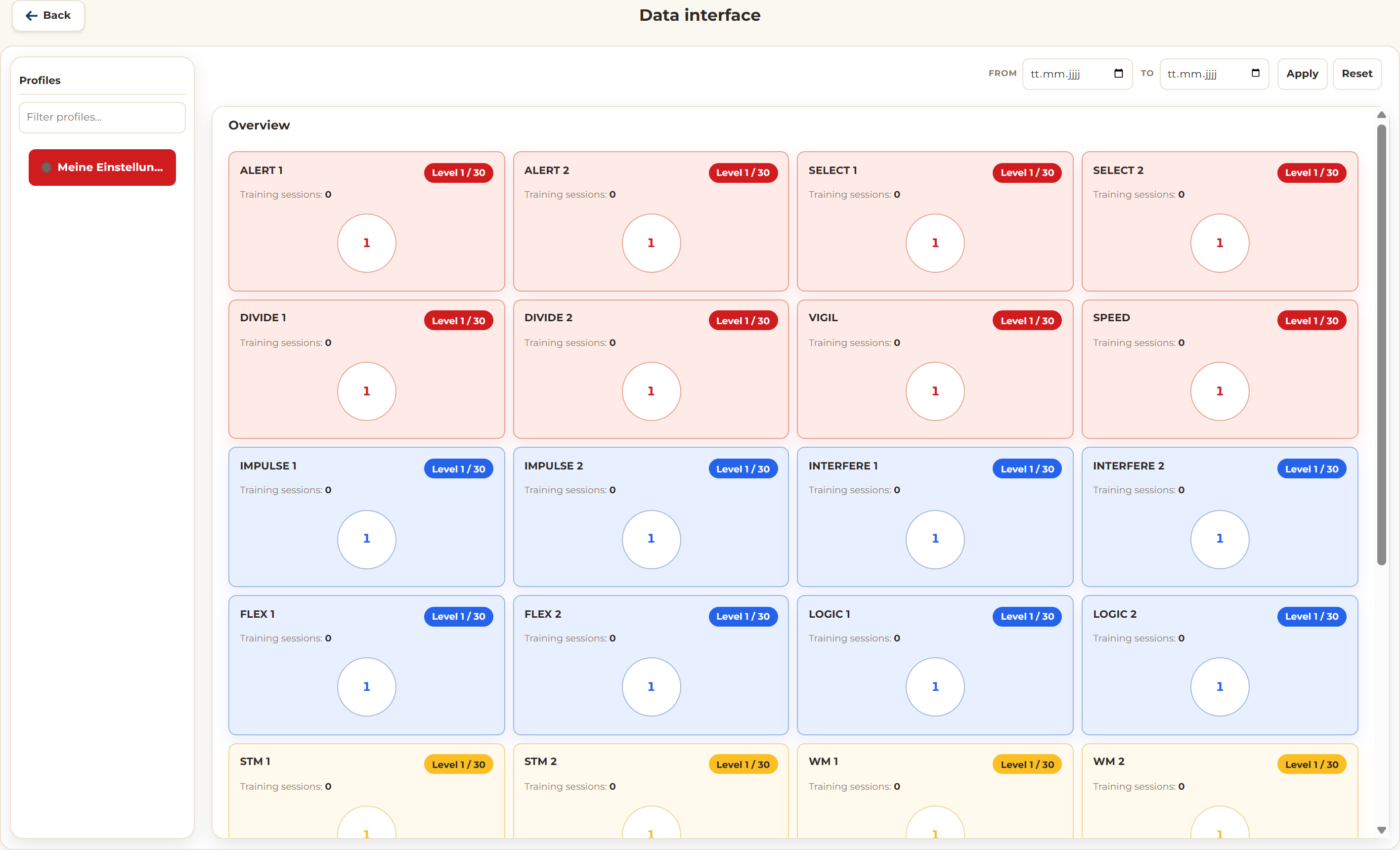
Progress in the data interface.
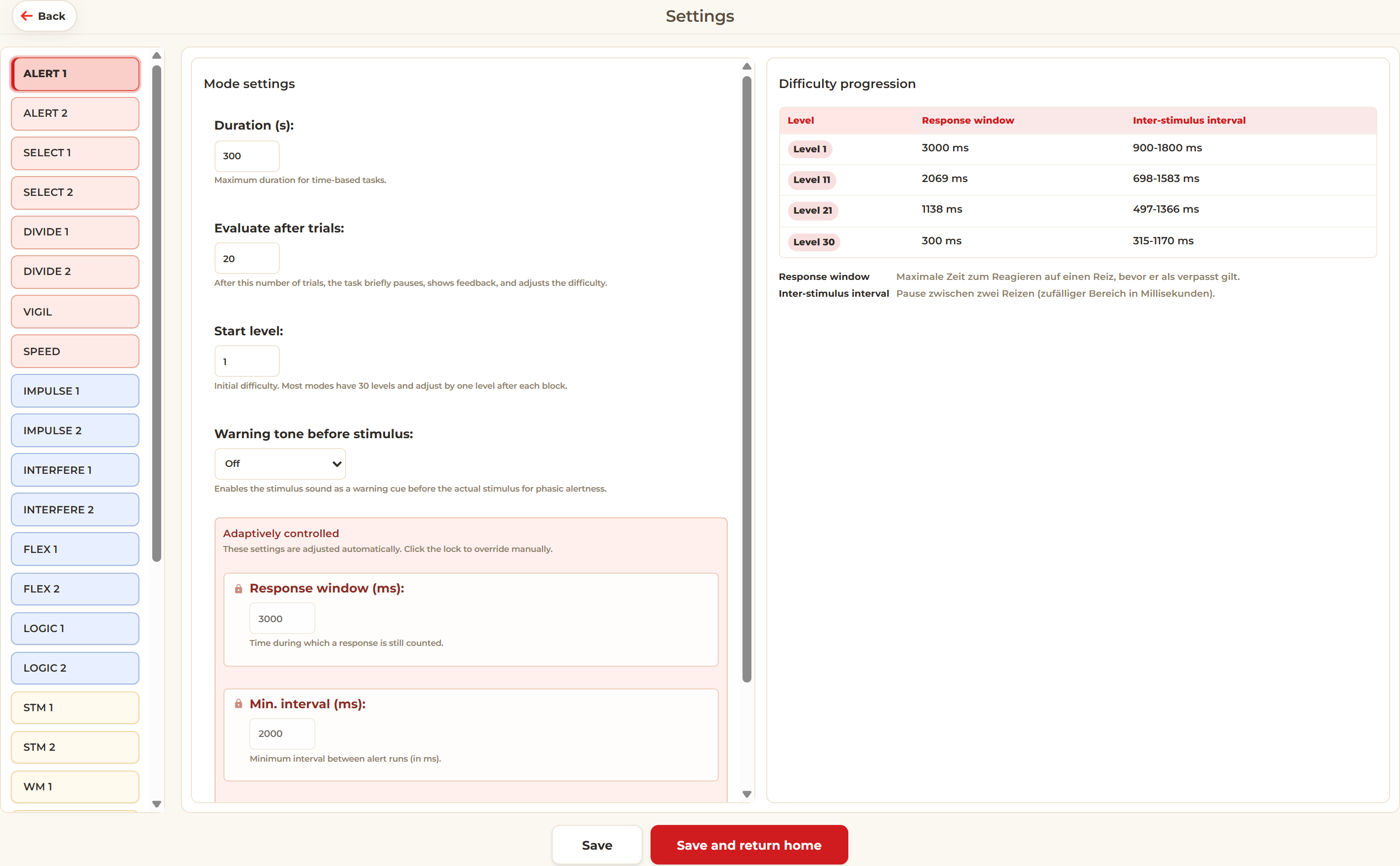
The data interface shows a profile's entire training history. The settings adapt each game to the
person training.
Data interface. Profiles on the left, the analysis on the right.
Settings. Parameters and difficulty progression for each game.
In the data interface, select a profile on the left. The overview shows sessions,
levels reached, medals and progress over time; the filters at the top narrow down the period and
the area.
In the settings, you adjust each game — pace, number of trials, response window —
and see the difficulty progression of levels 1 to 30. Global options such as dark mode and the
language apply to the whole application.
Analysis & settings05
Cognitive training
Tips & contact
Good to know
Tips for everyday training.
A few recommendations for effective and pleasant training.
Therapists select the person's profile before training; as a private user you train directly.
Start with a screening and repeat it after longer breaks.
Train briefly and regularly rather than rarely and at length.
Use programs to put together a fixed routine of several games.
Switch on dark mode if you are sensitive to light.
Most games can be operated with keyboard, mouse or touchscreen.
Something unclear or not working? Use «Feedback» on the home screen or «Report a problem»
during a game to send us a message directly.
Controls
Each game's instructions show the matching controls — here are the main ones:
Mouse
Tap
Spacebar
Enter
Left arrow
Right arrow
With the «Exit» button (top right), you can leave an exercise at any time.
Learn more
The complete user manual with all games, the settings glossary and the difficulty progression
can be found at docs/Bedienungsanleitung.html. Questions and feedback are welcome
at kognitives-training.ch.
 Mouse
Mouse Tap
Tap Spacebar
 Enter
Enter Left arrow
 Right arrow